









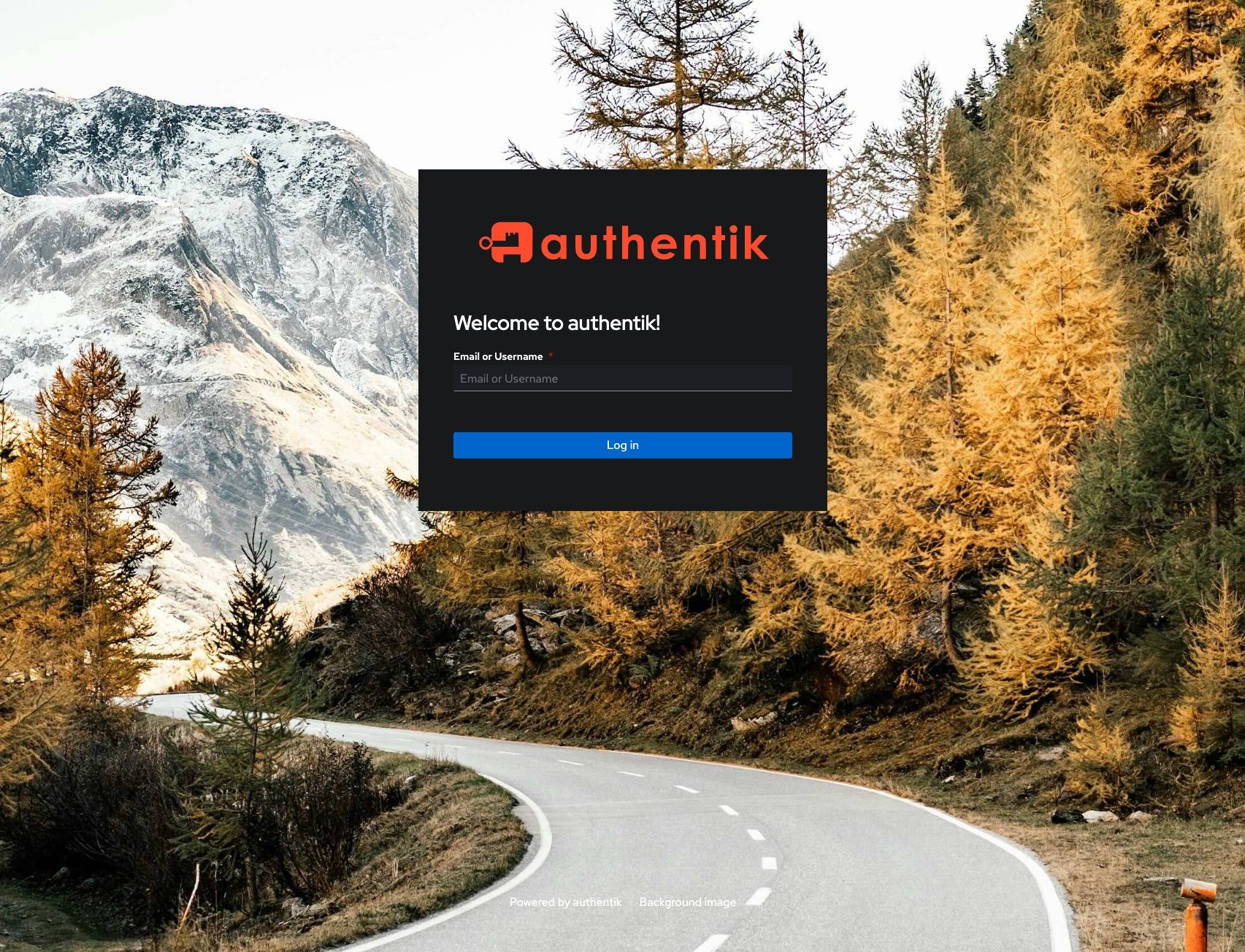
Integrating a new application into Authentik using a username-based approach (like <user>) typically involves setting up a Provider and an Application. Since you are using a local IP (192.168.0.x ), you’ll likely be using Authentik as a Forward Proxy or via an Outpost.
Here is the step-by-step workflow to get paper.<domain>.com connected:
1. Create the Provider
The Provider defines how Authentik communicates with your website.
Navigate to Resources > Providers and click Create.
Select Proxy Provider (most common for internal sites like this).
Name:
Paper-ProviderAuthorization flow: Select your default explicit consent or bypass flow.
External host:
https://paper.<domain>.comInternal host (Optional):
http://192.168.0.x(if Authentik needs to route directly to the IP).
2. Create the Application
The Application is the “front-end” entry that users see in their dashboard.
Navigate to Resources > Applications and click Create.
Name:
PaperSlug:
paperProvider: Select the
Paper-Provideryou just created.Policy Engine Mode: Leave as “Any” unless you want strict restriction rules.
3. Configure the “prox” User
To ensure you are identified as prox, you have two main options:
Attribute Mapping: If the application requires the username to be sent in a specific header (like
X-authentik-username), you can create a Property Mapping under Providers to ensure the valueproxis passed.User Setup: Ensure a user with the username
proxexists in Directory > Users. If you want this specific website to only see the usernameproxregardless of who logs in (less common, usually for service accounts), you would need a specialized header override in your Nginx/Traefik configuration.
Integration Architecture
Note: Since you are using a custom domain with a local IP, ensure your Reverse Proxy (Nginx Proxy Manager, Traefik, or Caddy) is pointed at the Authentik Outpost so the authentication challenge triggers when you hit the URL.
Would you like me to walk you through the specific Nginx or Traefik configuration labels needed to link this to your Authentik Outpost?
Comments